Ban list guide
How to share a ban list between game servers
There are two cases. You share bans across the servers of your own community, or you share a ban list with another community.
Before you start
- Your servers are connected to WarGuardian. See the setup guides.
- Your staff role can manage bans on the servers that take part.
Share bans across your own servers
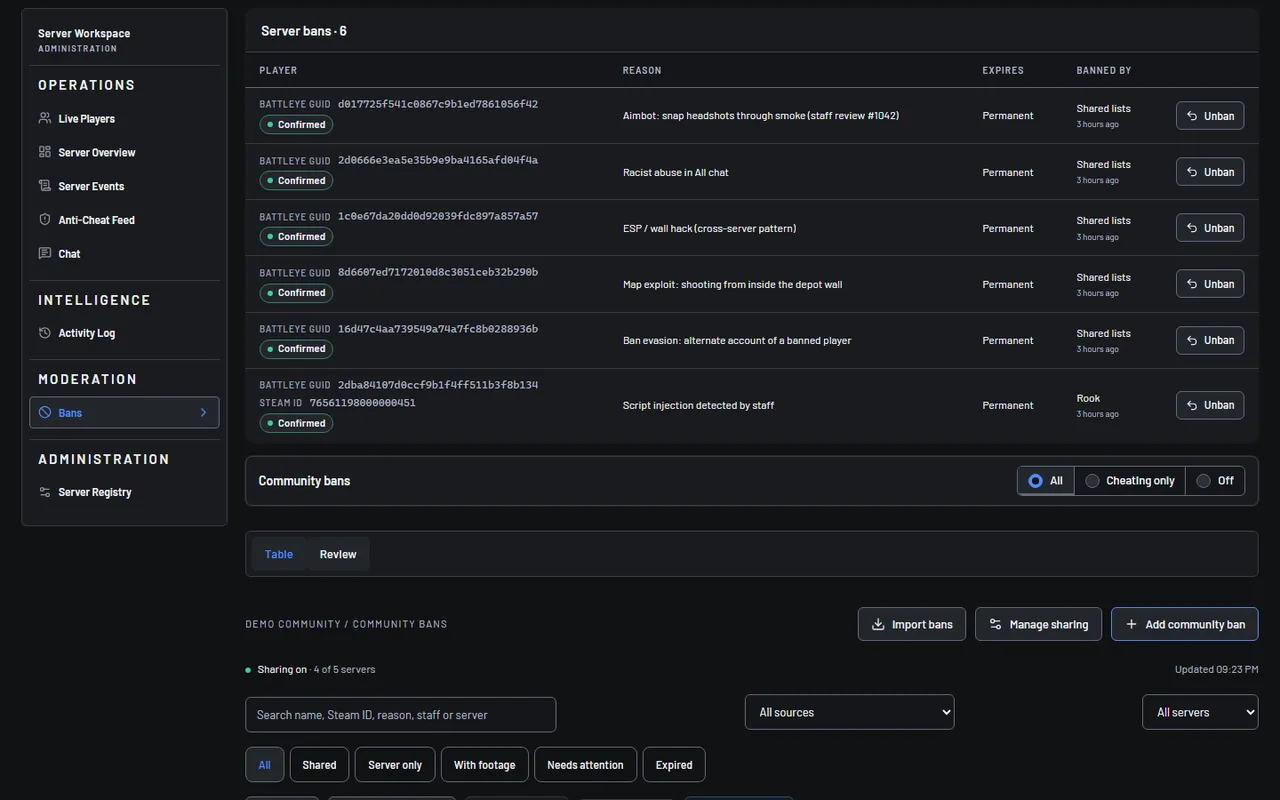
- Open Community bans. Go to Moderation, then Bans, then Community bans.
- Choose the servers. Select Manage sharing and choose the servers that receive shared bans. Sharing starts off.
- Share a ban. Select Share with community when you add or review a ban. You can also select Share on a ban of one server.
- Check the result. Server coverage shows where the ban has applied.
To bring in the bans that your servers already have, select Import bans. Check the results before you confirm the import.
Publish a ban list for another community
- Create a list. Go to Moderation, then Bans, then Ban Lists. Under Your lists, create a named list.
- Add decisions. Select Publish staff decision and choose a recorded decision and its evidence.
- Create a share code. In the settings of the list, generate a share code and give it to the other community.
- Or make it public. In the settings of the list, select Change visibility and choose Public. The list then appears in the public ban list directory.
A public list shows its Steam IDs, ban reasons, staff names and end times to each signed-in reader. Attached evidence stays private unless you make it public.
Rotate or disable a share code to stop new communities from joining. Communities that already follow the list keep their access until you revoke it.
Follow a ban list from another community
- Join the list. Select Join with share code and enter the code. The list appears under Following.
- Or find a public list. Open a list in the public ban list directory and select Follow in review mode.
- Review it. The list starts in Review only, which places no bans. Read the reasons, the staff names, the end times and the evidence.
- Choose servers and activate. In the settings of the list, select the servers and activate. Check the proposed changes and confirm.
- A server that you add later does not take the list until you select it.
- Exempt this decision leaves one ban out for your community.
- Pause updates stops new changes. Bans that are already in place stay.
Common questions
Does following a ban list ban players at once?
No, a followed list starts in Review only. It places bans after you choose the servers and confirm.
Can I share automatic bans?
Inside your community, yes, with Share automatic bans in Manage sharing. A list for other communities takes staff decisions only.
How do I stop sharing?
Revoke shared ban removes the copies of one ban from the other servers. Stop sharing keeps the bans in place and stops later changes.
Do timed bans end on every server?
Yes, a shared ban keeps its end time. WarGuardian removes it from each server when it ends.
Related pages
- Ban list sharingKeep one ban list for all your servers and follow lists from other communities.
- Anti-cheat and player reviewSee BattlEye kicks, screen joining players and review unusual statistics.
- Arma Reforger RCON panelNative moderation, server status, mods, backups and restarts.
- DayZ RCON panelLive players, chat, BattlEye kicks and bans that stay in place.
- Arma 3 RCON panelLive players, chat, BattlEye kicks and bans that stay in place.
- WARDOGS RCON panelPlayers, maps, the kill feed, player review and automations.
Run your community with WarGuardian
Connect one server free. Then invite your staff.